1. Export an EDL marker file from DaVinci Resolve
- Select the sequence in your media tab.
- Make the right click on the sequence timeline in your media tab and it will open the popup.
- Navigate to: "Timeline > Export > Timeline Markers to EDL"
2. Use the "Конвертер маркеров" to convert the EDL marker file into a Final Cut 7 XML marker file
Open the free Конвертер маркеров, select "DaVinci Resolve > Sequence (.edl)" and set "convert" to "Adobe Premiere Pro > Sequence (.xml)". Generate and download the file. Если возникли проблемы с конвертацией файла, обратись в бесплатную службу поддержки.
3. Import the Final Cut 7 XML marker file into Adobe Premiere Pro
To import timeline markers, go to "File -> Import" and select the XML file.
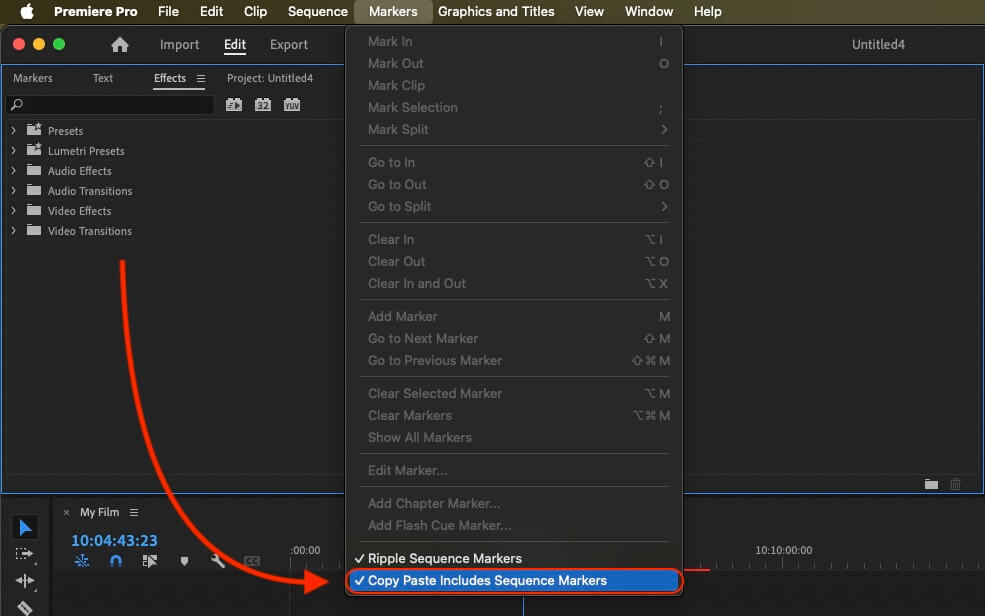
If you want to copy these markers into the existing sequence, use the adjustment layer or any other video as placeholder. Then copy the clip and switch to your existing sequence. Move the cursor to the location, where the adjusmtent layer or first marker appeared in the other sequence. Then past it. It will only copy the timeline markers if under setting (in the Markers menu) the option "Copy Paste Includes Sequence Markers" is active.
🚀 Готово
На этом всё! Если туториал оказался полезным, поделись им, чтобы поддержать нас. Если у тебя есть предложения, как улучшить рабочий процесс, дай нам знать!