1. Export a TXT marker file from Adobe Prelude Live Logger
In the Adobe Prelude Live Logger app go to export and save the TXT file.
2. Use the "Конвертер маркеров" to convert the TXT marker file into a CSV file
Open the free Конвертер маркеров, select "Adobe Prelude Live Logger > Marker (.txt)" and set "convert" to "CSV for Google Sheets". Generate and download the file. Если возникли проблемы с конвертацией файла, обратись в бесплатную службу поддержки.
3. Import the CSV file into Google Sheets
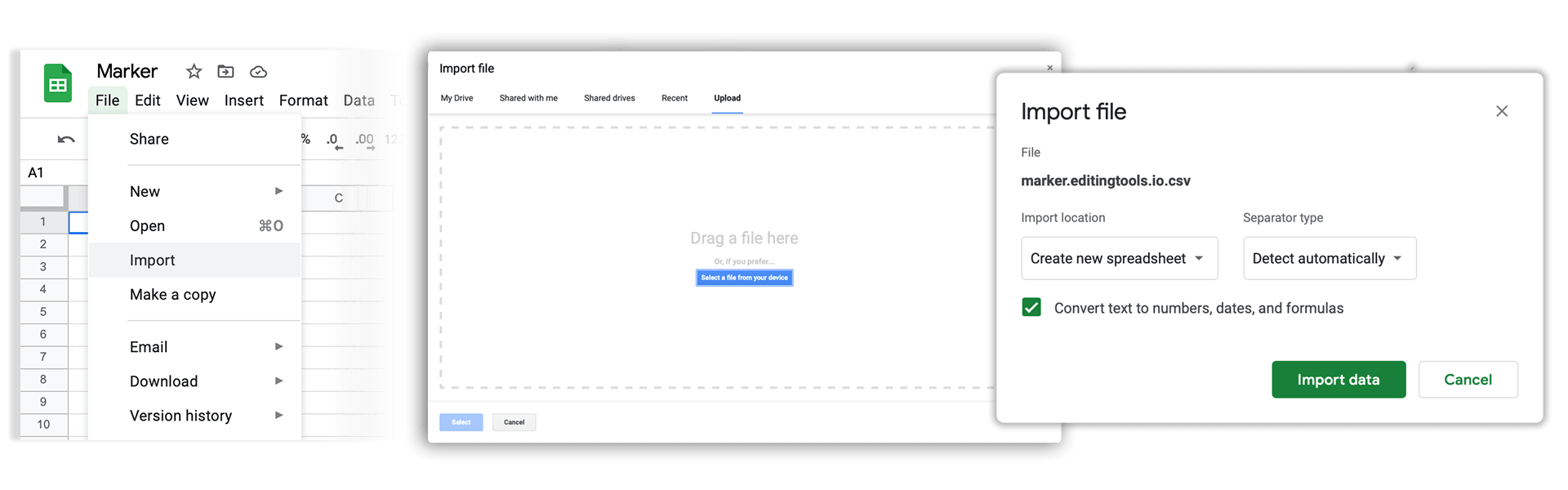
Open Google Sheets and go to "File -> Import". Upload the generated CSV file and press "Import Data" to generate the Sheet with all markers.
🚀 Готово
На этом всё! Если туториал оказался полезным, поделись им, чтобы поддержать нас. Если у тебя есть предложения, как улучшить рабочий процесс, дай нам знать!