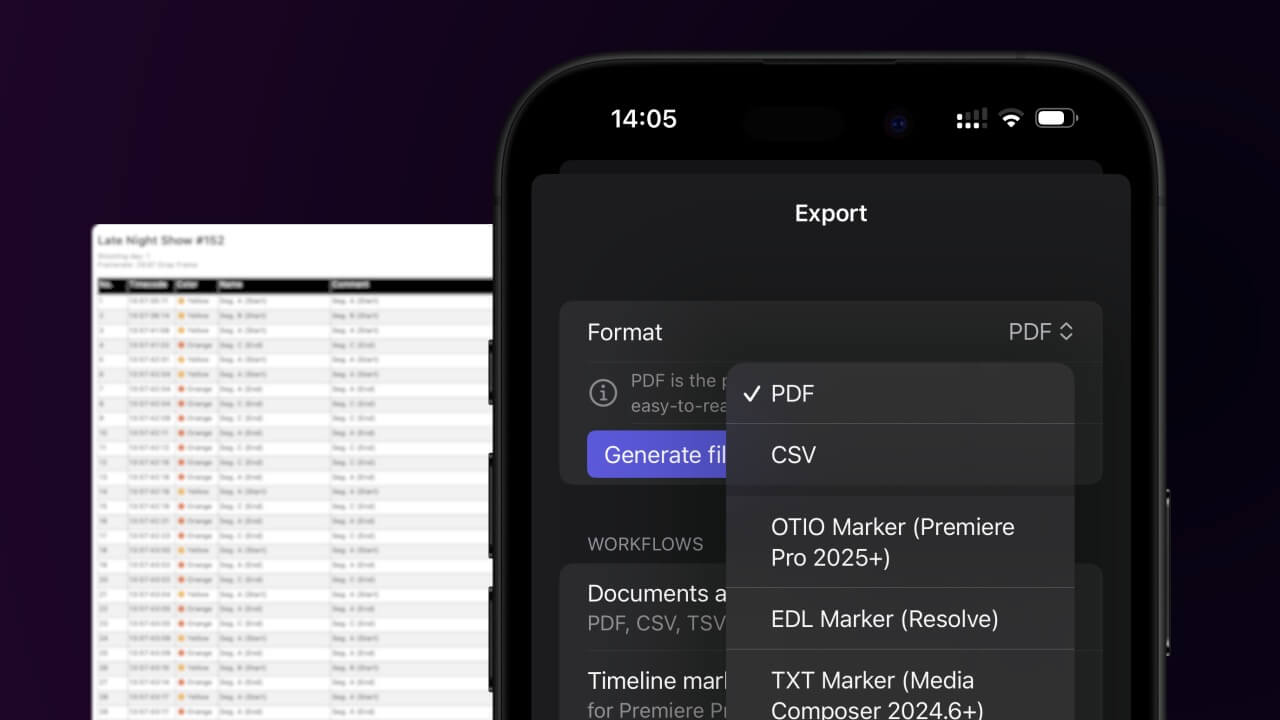
1. Export a CSV file from Live Timecode Notes app
Open the project in the app, then select "Export Notes" from the top menu. Select "CSV". Generate and save the file.
2. Use the "Конвертер маркеров" to convert the CSV file into a ptx marker file
Open the free Конвертер маркеров, select "CSV" and set "convert" to "Pro Tools > PTX File (.ptx)". Generate and download the file. Если возникли проблемы с конвертацией файла, обратись в бесплатную службу поддержки.
Ensure that the CSV file contains columns labelled "Timecode In", "Name" and "Comment". Otherwise, it will not work. You can also add columns for 'Colour' and 'Timecode Out'.
🚀 Готово
На этом всё! Если туториал оказался полезным, поделись им, чтобы поддержать нас. Если у тебя есть предложения, как улучшить рабочий процесс, дай нам знать!