Standard search tools are temporary. Keyword Marker is permanent. Whether you're looking for specific action cues across 50 takes or mapping out topic clusters in a feature-length documentary, this plugin creates a visual map of your story that stays with you until the final export. Stop wasting time searching your own footage.
для Adobe Premiere Pro CC 2022+
Для Windows и macOS.
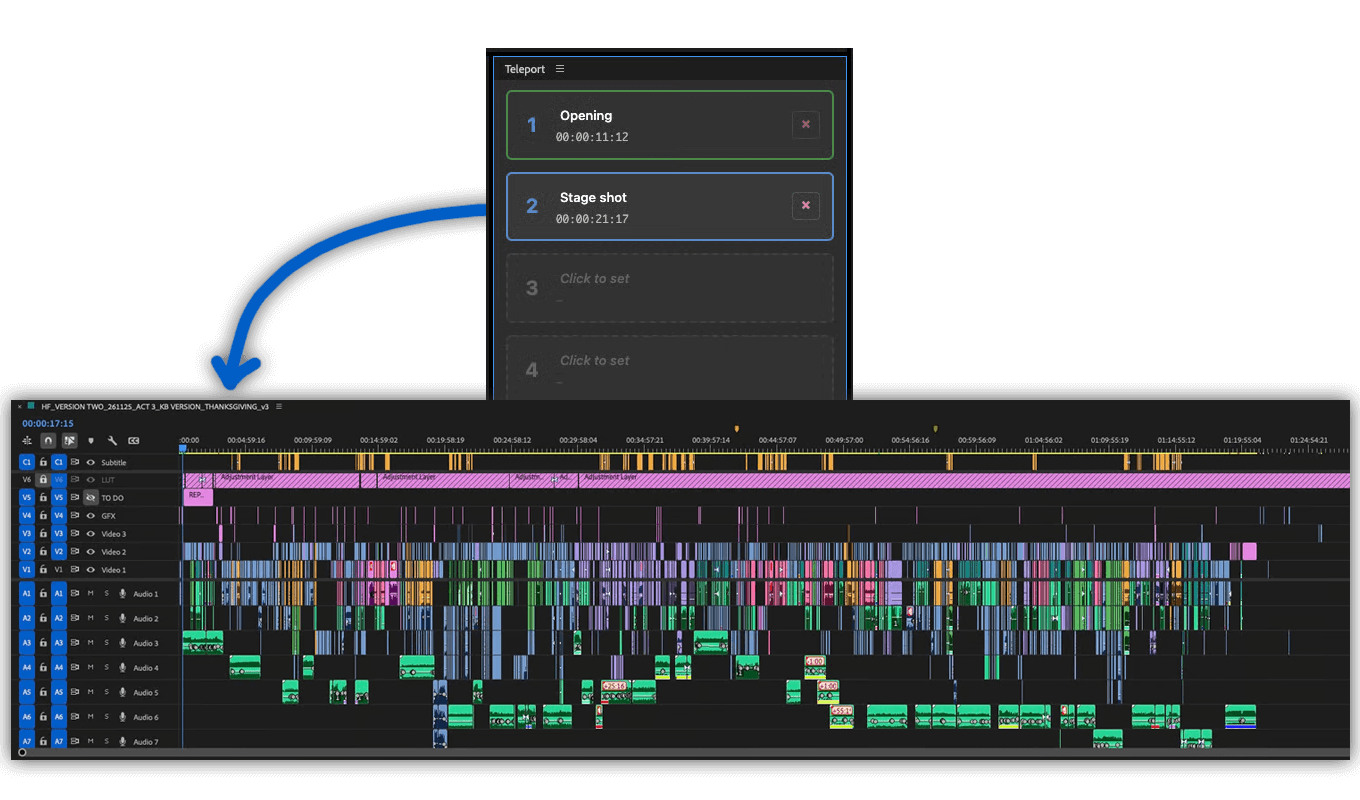
As an editor, you know how frustrating it is to find the perfect sound bite in a two-hour interview only to lose that location the moment you clear your search bar. Keyword Marker transforms your transcript searches into permanent visual markers on your Adobe Premiere Pro timeline.
How it works in 3-steps:
We offer three types of licenses. The single-user license is ideal for freelancers who want to use the software on one or two computers. This license is tied to a single account. For companies, we offer a team license, which is bound to the company. The number of licenses can be chosen upon purchase, with a minimum of three licenses. We also offer an enterprise option. Please contact our sales team for more information. All licenses are perpetual.
Обрати внимание: сам плагин в настоящее время доступен только на английском языке.
You will be redirected to the secure "Paddle" checkout. Paddle.com is the Merchant of Record.
Обратный заряд: If you are buying for a company and have a VAT ID, you may be able to use the reverse charge procedure in some countries. On the checkout page, click "Add VAT ID" on the left after selecting your country and postcode.
Лицензии для бизнес-команд нельзя приобрести через Adobe Exchange Store.
Если у тебя есть вопросы или пожелания по функциям, обращайся в нашу службу поддержки. Мы будем рады помочь тебе!
To install the plugin, use the ZXP Installer from AE Scripts or Anastasiy Extension Manager. These installers are free.
If you already have the plugin installed and want to install a new version of the plugin, you can simply run the new installer. It is not necessary to uninstall the old version, the new one will overwrite everything.
You can activate the plugin panel in Premiere Pro menu under "Window > Extensions > Teleport".
Yes. It also works on air-gapped systems.
Нет, ваши данные останутся на вашем устройстве.
Да. Плагин разработан для поддержки всех типов проектов, включая проекты с строгими ограничениями и подписанными соглашениями о неразглашении. Он не будет передавать данные ни на какие устройства, кроме ваших.
Закрой и снова открой панель. Это должно перезагрузить плагин и решить проблему. Если это не помогло, попробуй перезапустить Premiere Pro или переустановить последнее обновление плагина.
Мы всегда следим за тем, чтобы плагин работал в последней версии Adobe Premiere Pro, начиная с Premiere Pro 2022, 2023, 2024, 2025 и более поздних версий.
Если у вас возникли проблемы с плагином, убедитесь, что у вас установлена его последняя версия. Вы также можете обратиться в нашу службу поддержки в любое время, если у вас возникнут какие-либо проблемы.
Плагин был написан для Windows 10 и MacOS 12 (Montery). Пока это не исключает другие версии, но мы не можем исключить пробные проблемы при использовании со старыми версиями. Если ты используешь более старую операционную систему, пожалуйста, сообщи нам о своем опыте.
If you purchased the plugin without creating an account, there are two ways to download an update or redownload the plugin. The fastest option is to create a free account using the email address associated with your purchase. This will automatically link the purchased license to your account. Once you are logged in, you can find the plugin under Purchases and download it again. If you do not see your plugin, click on "Relink purchases." Note that a plugin can only be relinked automatically if the same email address is used. Another option is to contact our support team and request a new download link. However, this process may take some time.
Если тебе нужна новая функция, опция или адаптированная версия плагина, отправь нам сообщение. Мы предлагаем индивидуальные решения для бизнеса.
On Windows the extension can be easily uninstalled under "Add/Remove Programs".
On MacOS the extension can be easily uninstalled by deleting the folder "/Library/Application Support/Adobe/CEP/extensions/Teleport".